Wolfbox Auto
- 3.1
- Rating
- 50.00K
- Installs
- Free
- Price

 Analysis by App-foxy
Wolfbox Auto is the kind of driving companion I would approach with a practical mindset rather than expecting a complete replacement for every tool already on my phone. Developed by WOLFBOX TECH, INC., it sits in the Auto & Vehicles category and is available free of charge for everyone. The app’s store summary, “WOLFBOX · Engineered for Smarter Driving,” points toward a connected driving experience, while the shorter description, “Wolfbox Auto,” keeps the public presentation deliberately simple.
After spending time with it, my impression is that its value depends less on opening it occasionally and more on building a repeatable routine around it. If you already use Wolfbox equipment or want a focused way to manage a compatible driving setup, it can make everyday use feel more organized. If you are looking for a universal navigation app, a full roadside service platform, or a polished all-in-one replacement for several established apps, this is not the right expectation.
How I would build a dependable everyday workflow
My preferred starting point with Wolfbox Auto is deliberately boring: install it, open it before a trip, and learn where the important controls are before trying to make the experience faster. That first familiarization matters because driving apps are most useful when they reduce distraction rather than create another screen to study while the car is moving.
You May Also Like

 Google Keep - Notes and lists
Google Keep’s Quiet Growth Shows the Appeal of Simpler Notes
As mobile work gets busier, Google Keep keeps winning a simple contest: capture a thought quickly, find it later, and get on with the day.

 Blood Strike: 2.5 Anniversary
Blood Strike’s Loadouts Turn Every Drop Into a Tactical Gamble
A close look at Blood Strike’s custom loadouts: how fast access to signature weapons reshapes its battle royale rhythm, rewards preparation, and narrows the gap between fights.

 Pandora - Music & Podcasts
Pandora’s Music Is Easy to Start, but Harder to Recover
Pandora’s strength is its low-effort path from a seed to a station. Its weak spot is how much confidence it asks you to place in connection, setup, and quiet recovery.

 8 Ball Pool
 Is Built on Rivalries, Rematches, and Routine
A close look at the rivalries, rematches, shared routines, and unanswered safety questions that turn a quick pool match into a persistent mobile community.

 Samsung Music
’s Quiet Strength Is Playing What You Already Own
Its reach comes less from spectacle than from dependable access to a personal library. That simplicity is both the app’s strongest retention engine and its ceiling.

 AccuWeather: Weather Radar
AccuWeather Review: A Quick, Clear Forecast for Everyday Decisions
For everyday plans, the best forecast is the one you can understand quickly. AccuWeather makes rain timing, radar, and local conditions easy to act on, with a few trade-offs.
More From Our News Desk



I would begin by checking how the app fits into the rest of my vehicle routine. For example, I might use it when I park outside work, return to the car later, and want to review the connected driving information without searching through unrelated phone apps. The useful habit is to treat the app as part of a fixed sequence: prepare before leaving, use only the controls needed during the journey, and review anything important after parking.
That sequence is more valuable than repeatedly experimenting with settings on the road. I found that a driving companion becomes easier to trust when I know what I expect to see at each stage. Before departure, I want the connection and basic status to be clear. During the drive, I want minimal interaction. Afterward, I want to inspect details calmly, when I am no longer dealing with traffic.
A realistic example is a weekend trip involving several stops. Instead of opening the app every few minutes, I would check it once before leaving, keep the phone secured, and use the same review habit each time I park. That approach prevents the app from becoming a source of unnecessary attention. It also makes it easier to notice whether a problem comes from the vehicle setup, the phone connection, or my own inconsistent routine.
The most important practical rule is to configure Wolfbox Auto while parked, not while driving. This sounds obvious, but it changes the whole experience. A few minutes spent understanding the interface at home can save repeated fumbling in a busy parking area or at the start of a journey.
The app is particularly suitable for drivers who prefer a dedicated companion for their Wolfbox-related setup instead of mixing vehicle tasks into a general-purpose application. It can also suit someone who wants a simple, repeatable process rather than a long list of optional tools. I would be more cautious recommending it to a driver who expects every vehicle function, navigation task, emergency feature, and maintenance reminder to live in one place.
What I check before trusting the setup
My first check is whether the app behaves consistently from one session to the next. I pay attention to whether the same controls are easy to find, whether the connection feels predictable, and whether I can complete the basic task without repeatedly reopening menus. These are small details, but they matter more than an attractive first impression when an app is used around a vehicle.
I also separate essential actions from optional exploration. The essential path should be short enough that I can remember it. Optional screens can be explored later, but they should not become part of my departure routine unless they genuinely help. This distinction is one of the easiest ways to avoid turning a useful driving app into a checklist that slows me down.
Another useful habit is to test the app in the same conditions in which I plan to use it. A setup that feels fine while sitting at home may feel different when the phone is locked, the car is moving, or the connection has been interrupted. I would test the workflow while parked in the driveway, then repeat it after a short local drive before relying on it during a longer journey.
That testing also answers a question many users have: can the app be treated as a set-and-forget tool? My answer is no. Even if the daily routine becomes simple, I would still revisit it after changing phones, updating the app, adjusting the vehicle setup, or changing how the phone is mounted. Driving-related software is sensitive to the wider environment, so a habit of occasional checks is sensible.
Settings that deserve attention before daily use
I would not change every available option immediately. My approach is to adjust only settings that affect clarity, convenience, or how often I need to touch the phone. Once the basic workflow is stable, I can decide whether a particular option genuinely saves time. If it merely adds another screen to inspect, I leave it alone.
The first area worth checking is the connection experience. I want to know how the app indicates that it is ready and what I should do if the expected status does not appear. The goal is not to memorize technical explanations; it is to have a simple recovery action. For me, that means closing the app only when necessary, checking the phone’s connection state while parked, and avoiding repeated taps that do not change anything.
Next, I look at notification behavior. Driving apps can become irritating when they speak too often or place nonessential prompts in front of the user. I prefer notifications that help me recognize a meaningful status change, while keeping routine information out of the way. If a notification does not help me prepare, drive, park, or review something afterward, I question whether I need it.
Phone permissions are another area I would review carefully rather than approving everything automatically. I want to understand which access is needed for the functions I actually plan to use. This is not about making the app difficult to use; it is about keeping the setup intentional. If I later decide to use a function that needs an additional permission, I can grant it at that point instead of making every decision during installation.
I also recommend checking the app version after the initial setup. Wolfbox Auto is currently at version 1.8.0 and requires Android 7.0 or later, so compatibility is not likely to be a concern for many Android users, but I would still confirm that the phone is supported before planning a trip around it. On iOS, I would similarly check the current device requirements in the relevant store before assuming the same experience applies.
One setting-related trade-off is simplicity versus visibility. Some drivers want every available status displayed immediately. I tend to prefer a cleaner view with only the information I can act on. A crowded dashboard may feel informative at first, but it can make the one control I need harder to locate. In my experience, the best configuration is the one that lets me answer a practical question quickly: is the setup ready, do I need to do something, or can I leave it alone?
Small adjustments that improve repeatability
I would create a personal pre-drive checklist outside the app rather than relying on memory alone. It could be as short as checking the phone position, confirming the vehicle setup is ready, and opening Wolfbox Auto before moving. The point is not to turn a short trip into a ceremony. It is to make the same few actions happen in the same order, especially when I am tired or in a hurry.
For longer journeys, I would add a post-drive review habit. I would wait until parked, open the app, and inspect anything I actually need. This is a better time to learn from the session or check a detail than during traffic. It also keeps the app in its proper role: a support tool for driving, not a reason to handle the phone continuously.
Another useful adjustment is deciding in advance who will operate the app. If I am driving alone, I keep interaction to an absolute minimum. If a passenger is available, that person can handle nonessential checks while I concentrate on the road. This simple division makes more difference than trying to find a faster gesture or shortcut.
Faster patterns for experienced users
Once the basic workflow is familiar, the biggest speed improvement comes from repetition. I do not try to discover a new route through the interface every time. I use the same entry point, the same preparation order, and the same parking-time review. This reduces mental effort and makes it easier to notice when something behaves differently.
I also separate “quick check” sessions from “full review” sessions. A quick check answers only whether I am ready to drive. A full review is reserved for when I am parked and have a reason to inspect more closely. Mixing those two purposes is inefficient because it encourages me to open multiple screens when I only need one confirmation.
A second pattern is to prepare before the moment of pressure. If I know I will be leaving a crowded car park, I set up while stationary before joining the road. If I am about to begin a long trip, I complete the app-related steps before loading the route or dealing with passengers. This makes Wolfbox Auto part of departure preparation rather than an interruption after the journey has already begun.
I would also keep a simple note of recurring problems for the first few drives. If the connection fails only after the phone has been away from the car for a while, that is useful to know. If a particular screen takes longer to load or a setting is easy to overlook, I can adapt my routine. This kind of observation is more valuable than assuming every inconvenience is random.
One non-obvious benefit of a fixed routine is that it helps distinguish user error from app friction. If I always perform the same steps and the result changes, I have a clearer reason to investigate. Without that consistency, I might blame the app for a missed step or waste time changing settings that were never the problem.
For family vehicles, I would agree on one shared procedure instead of letting every driver configure the app differently. A common routine makes handovers easier and reduces the chance that one person changes an option that another person depends on. This is especially helpful when the vehicle is used by people with different comfort levels around phone-based technology.
Where the usual alternatives are stronger
Wolfbox Auto should not be judged as though it were a general navigation service. For route planning, live traffic, public transport, business searches, or finding a fuel stop, a mature mapping app is usually the better tool. Those apps are designed around maps and destinations, while this application is more naturally considered part of a vehicle-focused workflow.
It also is not the obvious choice for drivers who only need a basic phone mount and a familiar navigation screen. In that situation, adding another app may create more routine than value. The case for using Wolfbox Auto becomes stronger when the driver wants a dedicated connection to a compatible Wolfbox-oriented setup and appreciates keeping that function separate from navigation.
Compared with a built-in car system, a phone app can feel more flexible but also more dependent on the phone, its connection, and the user’s preparation. A factory interface may be smoother for drivers who want everything integrated into the dashboard. Wolfbox Auto is more appealing to someone who is comfortable with a mobile companion and wants control from that environment.
Compared with a generic vehicle app, the focused nature of Wolfbox Auto is both its advantage and its limitation. It avoids trying to be a complete digital garage, but that means it may not satisfy someone searching for extensive maintenance records, broad vehicle compatibility, or a large ecosystem of unrelated services. I would choose it for a specific Wolfbox-centered need, not simply because it belongs to the automotive category.
Advanced limits and the points I would not ignore
The average rating of 3.0 from around seventy-eight ratings gives me a reason to keep expectations measured. That figure does not make the app unusable, but it suggests that the experience may not be equally smooth for every driver, phone, or vehicle arrangement. I would test it locally before depending on it for an important trip, especially if the app is new to my setup.
The public footprint is still modest, with over ten thousand installs and thirty-six written reviews. That can mean fewer community tips when something behaves unexpectedly. An experienced user can compensate by keeping the workflow simple and documenting what works on their own phone, but a person who wants a large library of troubleshooting advice may prefer a more established platform.
There is also a practical limit to what any phone companion can solve. If the vehicle hardware, phone connection, mounting position, or operating-system behavior is the real source of a problem, changing screens inside the app will not necessarily fix it. I would troubleshoot in layers: check the physical setup, confirm the phone connection, restart only when appropriate, and then revisit the app’s settings.
I would be especially cautious about using the app as a substitute for attention. Even a well-designed driving tool can become distracting if I keep checking it for reassurance. My rule is simple: if the car is moving, I should not be exploring. If something requires extended interaction, I wait until I am safely parked.
Another limitation is that free access does not automatically mean zero friction. The app costs nothing to install, but the overall experience still depends on having a suitable Wolfbox-related setup and a phone that behaves reliably with it. In other words, the app’s value is tied to the surrounding hardware and routine. Someone without that context may find a general driving app more useful.
The Everyone content rating makes it approachable for a broad audience, but that should not be confused with universal suitability. New drivers, older family members, or anyone uncomfortable with connection troubleshooting may need a short guided setup. I would sit with them while configuring it, then let them practice the basic routine while parked.
Who should use it and who should pass
I would recommend Wolfbox Auto to a driver who already has a reason to use a Wolfbox-centered vehicle workflow, prefers a dedicated app, and is willing to spend a little time creating consistent habits. It is also a reasonable option for households that want one recognizable place for this particular driving-related task rather than asking everyone to remember a different process.
I would suggest looking elsewhere if your main goal is navigation, traffic avoidance, trip discovery, or a complete vehicle-maintenance history. I would also skip it if you dislike troubleshooting phone connections or if the app would duplicate a function your car already handles more smoothly through its built-in system.
The developer, WOLFBOX TECH, INC., has positioned the app around smarter driving, but my own interpretation is more grounded: it is a focused companion whose usefulness comes from fitting neatly into the right setup. It does not need to do everything to be worthwhile, but it does need to work predictably for the specific driver using it.
My mastery verdict after making it part of a routine
After using Wolfbox Auto as a focused driving companion, I see its strongest quality in the workflow it encourages. The app makes the most sense when I prepare before driving, keep interaction minimal on the road, and review details only after parking. That pattern is simple, safe, and repeatable, and it prevents the software from becoming another distraction.
Its weaker side is the uncertainty that comes with a smaller user base and a middling average rating. I would not install it five minutes before an important journey and assume everything will be perfect. I would test the connection, learn the essential controls, and decide whether the app genuinely improves my current setup. That short trial is more useful than judging it from the store summary alone.
For me, the deciding question is not whether Wolfbox Auto can replace every automotive app. It cannot, and it does not need to. The better question is whether it gives a Wolfbox-oriented driver a clearer, more repeatable way to manage the connected part of driving. If the answer is yes, the free price and broad age suitability make it easy to try.
My recommendation is cautious but positive for the right user: install it, configure it while parked, test it on ordinary local trips, and keep the routine deliberately small. Experienced users will get the most from consistent settings and repeatable habits, not from constantly searching for extra controls. With that mindset, Wolfbox Auto can be a useful addition to an Android or iOS driving setup, while drivers seeking a universal navigation or all-in-one vehicle platform should choose a different kind of app.
FAQs for Wolfbox Auto
01What is Wolfbox Auto and what features does it offer?
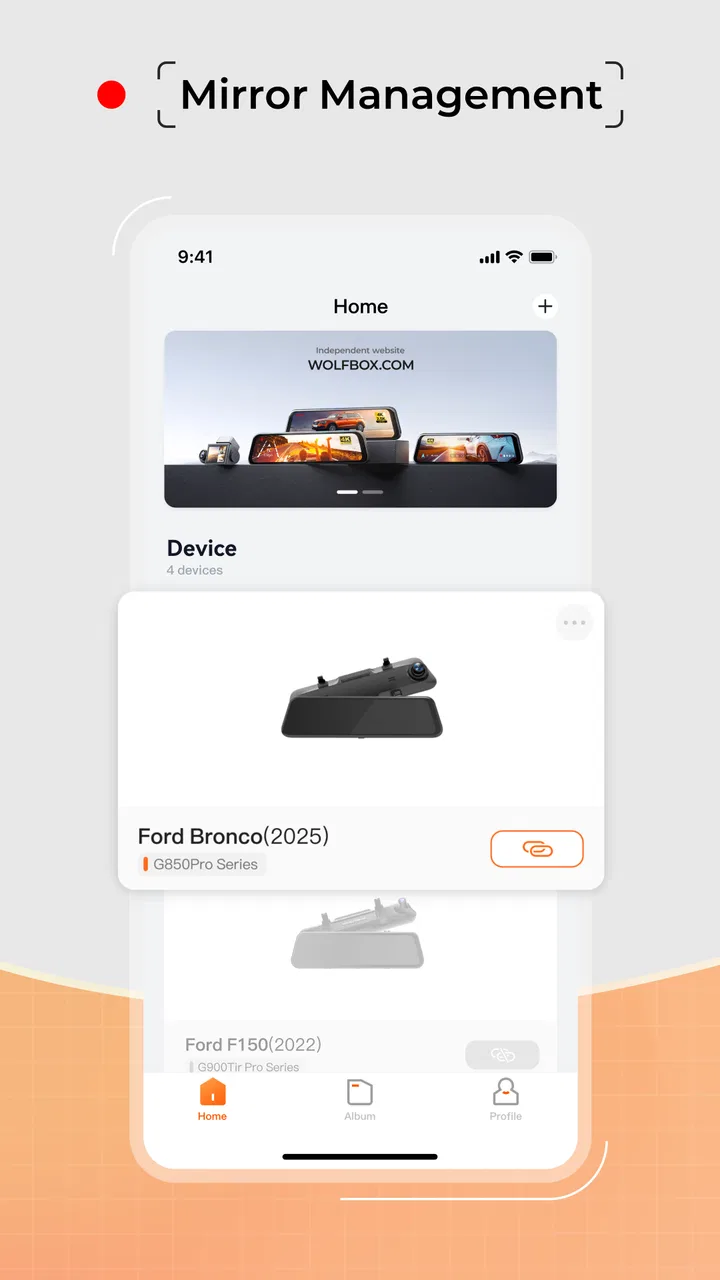
Wolfbox Auto is an advanced dashcam application designed to enhance your driving experience. It offers features such as real-time video recording, parking surveillance, GPS tracking, and collision detection. The app also allows seamless connectivity with your smartphone for easy video playback and storage, providing comprehensive support for your safety on the road.
02Is Wolfbox Auto compatible with all Android and iOS devices?
Wolfbox Auto is compatible with a wide range of Android and iOS devices. However, it’s important to check the specific system requirements before downloading. The app requires a device with at least Android 5.0 or iOS 10.0, and sufficient storage space to handle video recordings, ensuring smooth functionality and performance.
03Does Wolfbox Auto require an internet connection to function?
Wolfbox Auto primarily functions offline, allowing you to record and store footage without needing a constant internet connection. However, features like cloud storage access and GPS tracking may require internet connectivity. It's advisable to connect to Wi-Fi or mobile data for these specific functionalities to enhance your experience.
04How does Wolfbox Auto handle privacy and data security?
Wolfbox Auto prioritizes user privacy and data security by encrypting all recorded footage and personal information. Users have control over their data, with options to store videos locally or on secured cloud services. Regular updates ensure that the app complies with the latest security standards and regulations.
05Are there any additional costs associated with using Wolfbox Auto?
Wolfbox Auto offers a free version with basic features, but access to premium functionalities may require a subscription. These features can include advanced cloud storage, enhanced resolution options, and additional tech support. It's best to review the subscription plans to decide which option suits your needs and budget.
Pros
- User-friendly interface enhances usability.
- Real-time alerts for safer driving.
- High-quality video recording clarity.
- Seamless integration with smartphones.
- GPS tracking for accurate location data.
Cons
- Requires a stable internet connection.
- Limited cloud storage options.
- Some features locked behind paywall.
- Battery consumption can be high.
- Occasional app crashes reported.

Wolfbox Auto
Gallery